Knowledge Base

Knowledge Base

How to link an estimate to a project in the Saptivo CRM system? #

  1. Go to Menu -> Sales -> Estimates and click ‘Create New Estimate.’
  2. Select a customer.
  3. A drop-down with projects will be shown below the customer select field (if no projects are associated with the selected customer, the dropdown with projects won’t be shown).
  4. Select the project.
  5. Configure the estimate to fit your needs.
  6. Save the estimate.

Navigate to the project area and click on the tab ‘Sales -> Estimates.’ You will be able to see the newly created estimate associated with your selected project.

How to send an estimate to an email in the CRM system? #

Saptivo has the option to send this estimate to the related customer. Also, the PDF estimate will be attached to the email. If you do not want to attach the PDF estimate, simply uncheck the checkbox ‘Attach Estimate PDF.

After sending the estimate to the customer, if you want to send it again, there will be another email content. Because the initial estimate has already been sent, the customer may want the estimate again, and in all cases, this content will be different. Go to Setup -> Email Templates -> Estimate Already Sent to Client to edit the email content when sending the estimate to your customer for the second time.

By default, all contacts with permission for estimates will be selected, and you can adjust this to your needs.

How to convert an estimate to an invoice in the Saptivo CRM system?  #

You can easily convert the estimate to an invoice from the admin area.

Open the estimate you want to convert, and on the right side, click ‘Convert to Invoice.

How to create a new estimate in our CRM system? #

To create a new estimate, go to Sales -> Estimates -> Create New Estimate or click on the Build icon on the top left side and select Create Estimate.

Client – Before selecting a client, you must have added clients in Customers -> New Customer. When selecting a customer, the customer information will be fetched directly from the customer profile you created. Alternatively, you can click on the edit icon and directly add the desired customer information; this also applies to billing information, which is fetched when selecting a customer.

Note: If you want the billing details to be auto-populated when selecting the customer, you need to have previously added billing details in the customer profile.

Billing and Shipping – If you change the billing and shipping information after selecting a client and clicking on the edit icon, this will be changed for the estimate, but in the customer profile, the information will remain the same, and there won’t be any changes in the invoice.

Number – The number is automatically populated (e.g., 001, and the next will be 002). This number is fetched from Setup->Settings->Finance->Estimates – Next Number. The number is auto-incremented, but you can change the next number in Setup->Settings->Finance->Estimates.

Status – By default, the draft status will be selected, and you can change the status anytime you want. Note that when you send the estimate to your customer, the status will be changed automatically to SENT.

Currency – The currency is automatically selected based on your default currency or the currency set for the selected customer in the customer profile. If the currency for this customer is USD, it will be automatically selected and cannot be changed.

Sale Agent – You can select a sales agent for this estimate and then generate reports in Reports -> Sales -> Estimate Report. Note that the sales agent’s full name will be shown on the estimate if, in Setup -> Settings -> Finance -> Estimates -> ‘Show sales agent on estimate’ is set to ‘yes.’

Estimate Add New Item:

You can add estimate items. When adding, make sure to click on the blue check icon for the item to be added. You can also select tax options, as shown in the picture.

The items will be stored separately for each estimate, and changing the item information in Sales -> Items won’t affect the already created estimates with specific items.

Admin note is only for admins/staff members.

Customer note is visible on the client side as well, both in the HTML estimate and PDF estimate.

You can set up terms directly in the estimate, or you can have predefined terms that will be auto-populated. To set up predefined terms and conditions, navigate to Setup -> Settings -> Finance -> Estimate, scroll down, and you can populate the fields as it fits your needs.

Click submit to save the estimate.

While editing/creating an estimate the adjustment option is always available if you want to +- the total amount.

How to convert a proposal to an invoice in the CRM system? #

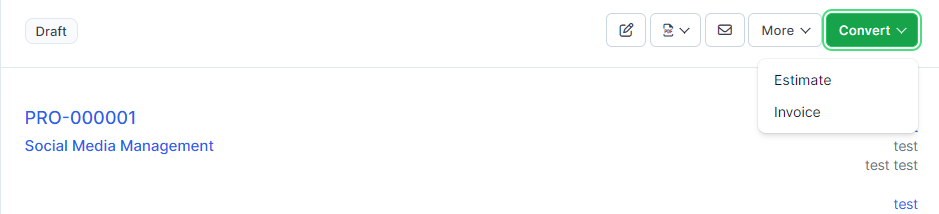
To convert a proposal to an invoice or estimate, select the proposal from the table, and on the right side, a ‘Convert’ button will be shown.

Click on the button and choose Estimate or Invoice. After you choose, a popup will be shown with the preview info, including the parsed items that are auto-inserted into the estimate/invoice.

When you are satisfied with the result, click ‘Save.’

After converting, the proposal will be automatically marked as accepted (if it is not already marked as Accepted).

If the proposal is related to some lead that is not converted to a client, you will need to convert the lead to a client first and then return here to convert the proposal to an estimate or invoice.

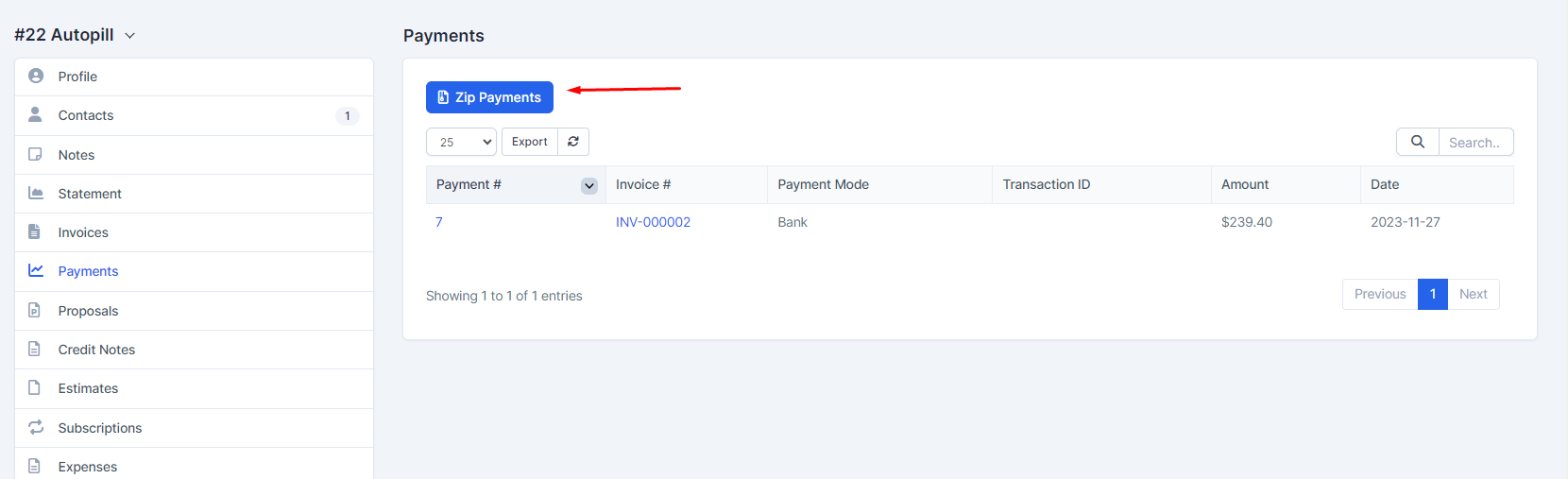
How do you export customer invoices, estimates, and payments to a ZIP file in CRM? #

Go to the customer profile and click on the tab where you want to export data, e.g., invoices.

Select a status or just leave it as ‘All’ and click ‘Submit.’ All invoices based on your selected options will be added to a .zip file.

You can choose a start and end date, the date is based on the invoice/estimate/payment date.

How to link an estimate to a project in the Saptivo CRM system? #

  1. Go to Menu -> Sales -> Estimates and click ‘Create New Estimate.’
  2. Select a customer.
  3. A drop-down with projects will be shown below the customer select field (if no projects are associated with the selected customer, the dropdown with projects won’t be shown).
  4. Select the project.
  5. Configure the estimate to fit your needs.
  6. Save the estimate.

Navigate to the project area and click on the tab ‘Sales -> Estimates.’ You will be able to see the newly created estimate associated with your selected project.

How to send an estimate to an email in the CRM system? #

Saptivo has the option to send this estimate to the related customer. Also, the PDF estimate will be attached to the email. If you do not want to attach the PDF estimate, simply uncheck the checkbox ‘Attach Estimate PDF.

After sending the estimate to the customer, if you want to send it again, there will be another email content. Because the initial estimate has already been sent, the customer may want the estimate again, and in all cases, this content will be different. Go to Setup -> Email Templates -> Estimate Already Sent to Client to edit the email content when sending the estimate to your customer for the second time.

By default, all contacts with permission for estimates will be selected, and you can adjust this to your needs.

How to convert an estimate to an invoice in the Saptivo CRM system?  #

You can easily convert the estimate to an invoice from the admin area.

Open the estimate you want to convert, and on the right side, click ‘Convert to Invoice.

How to create a new estimate in our CRM system? #

To create a new estimate, go to Sales -> Estimates -> Create New Estimate or click on the Build icon on the top left side and select Create Estimate.

Client – Before selecting a client, you must have added clients in Customers -> New Customer. When selecting a customer, the customer information will be fetched directly from the customer profile you created. Alternatively, you can click on the edit icon and directly add the desired customer information; this also applies to billing information, which is fetched when selecting a customer.

Note: If you want the billing details to be auto-populated when selecting the customer, you need to have previously added billing details in the customer profile.

Billing and Shipping – If you change the billing and shipping information after selecting a client and clicking on the edit icon, this will be changed for the estimate, but in the customer profile, the information will remain the same, and there won’t be any changes in the invoice.

Number – The number is automatically populated (e.g., 001, and the next will be 002). This number is fetched from Setup->Settings->Finance->Estimates – Next Number. The number is auto-incremented, but you can change the next number in Setup->Settings->Finance->Estimates.

Status – By default, the draft status will be selected, and you can change the status anytime you want. Note that when you send the estimate to your customer, the status will be changed automatically to SENT.

Currency – The currency is automatically selected based on your default currency or the currency set for the selected customer in the customer profile. If the currency for this customer is USD, it will be automatically selected and cannot be changed.

Sale Agent – You can select a sales agent for this estimate and then generate reports in Reports -> Sales -> Estimate Report. Note that the sales agent’s full name will be shown on the estimate if, in Setup -> Settings -> Finance -> Estimates -> ‘Show sales agent on estimate’ is set to ‘yes.’

Estimate Add New Item:

You can add estimate items. When adding, make sure to click on the blue check icon for the item to be added. You can also select tax options, as shown in the picture.

The items will be stored separately for each estimate, and changing the item information in Sales -> Items won’t affect the already created estimates with specific items.

Admin note is only for admins/staff members.

Customer note is visible on the client side as well, both in the HTML estimate and PDF estimate.

You can set up terms directly in the estimate, or you can have predefined terms that will be auto-populated. To set up predefined terms and conditions, navigate to Setup -> Settings -> Finance -> Estimate, scroll down, and you can populate the fields as it fits your needs.

Click submit to save the estimate.

While editing/creating an estimate the adjustment option is always available if you want to +- the total amount.

How to convert a proposal to an invoice in the CRM system? #

To convert a proposal to an invoice or estimate, select the proposal from the table, and on the right side, a ‘Convert’ button will be shown.

Click on the button and choose Estimate or Invoice. After you choose, a popup will be shown with the preview info, including the parsed items that are auto-inserted into the estimate/invoice.

When you are satisfied with the result, click ‘Save.’

After converting, the proposal will be automatically marked as accepted (if it is not already marked as Accepted).

If the proposal is related to some lead that is not converted to a client, you will need to convert the lead to a client first and then return here to convert the proposal to an estimate or invoice.

How do you export customer invoices, estimates, and payments to a ZIP file in CRM? #

Go to the customer profile and click on the tab where you want to export data, e.g., invoices.

Select a status or just leave it as ‘All’ and click ‘Submit.’ All invoices based on your selected options will be added to a .zip file.

You can choose a start and end date, the date is based on the invoice/estimate/payment date.
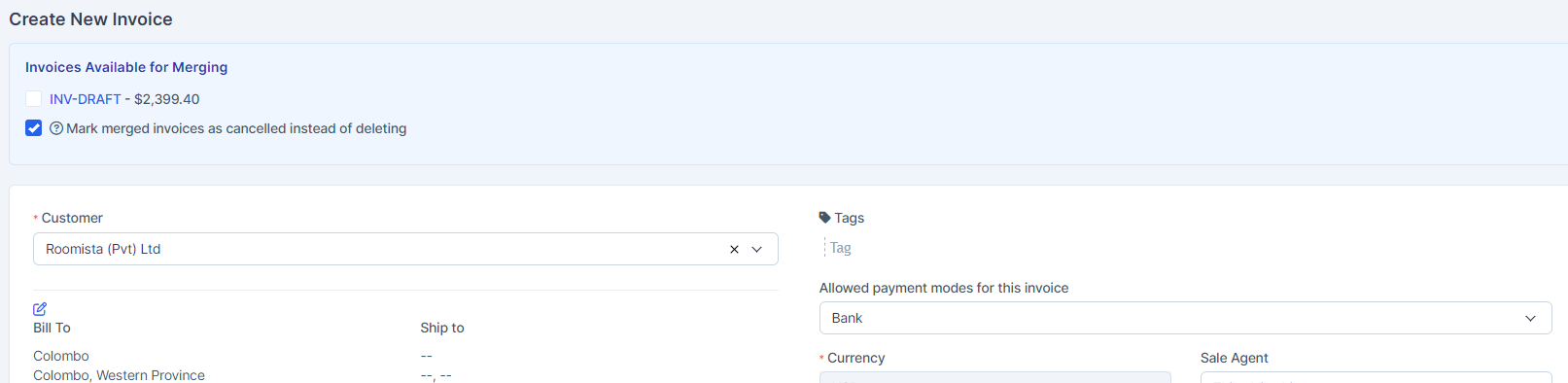
Table of contents

  1. How do I send a proposal with a viewable link for customers?
  2. How do I create a new customer contact in our CRM system?
  3. How do I create a new customer in the CRM system dashboard?
  4. How to restrict a staff member’s access to view all customers in the Saptivo CRM system?
  5. How can you register a customer in our CRM system?
  6. How can I generate a general customer report in the Saptivo CRM system? 
  7. How can you export data from a customer’s profile in our CRM system?

How do I merge invoices in the Saptivo CRM system?

Merging invoices is a feature in Saptivo CRM that allows you to combine/include already created invoices into one invoice by transferring all the invoice information to a new invoice. This feature is useful when your customer has other unpaid invoices, but you need to create an additional invoice for the customer, and you want to prevent them from paying multiple invoices. In this case, your customer will only need to pay one consolidated invoice.

To check if there are available invoices to be merged, you can find this information in different places:

  • 1. When creating a new invoice: Available invoices to merge are displayed after selecting a customer. The system will check if there are invoices that can be merged into the one you are creating for the selected customer.
  • 2. When previewing an existing invoice from the admin area: Available invoices will be shown at the top, and you can click on the edit button to take the necessary action.
  • 3. When editing an existing invoice: Available invoices for merging are displayed immediately after entering the edit invoice area.

It’s important to note that you can only merge invoices with the following statuses: Unpaid, Overdue, and Draft. For example, if the invoice you are editing has a status of Partially Paid, you won’t be able to merge existing invoices into it unless they also have a status of Unpaid, Overdue, or Draft.

To merge invoices, when you create or edit an invoice, a message will appear at the top indicating if there are invoices available for merging


You can merge multiple invoices by selecting the checkbox on the left side of the invoice number.

Once the checkbox is selected, the invoice items will be automatically added to your existing invoice that you are currently creating or editing.

Click ‘Save.’While editing/creating the invoice, the adjustment option is always available if you want to +/- the total amount.

Please note that if the payment is recorded via the admin area by a staff member (currently logged in), this staff member won’t receive an email.

  • 1. Navigate to Setup -> Settings -> Cron Job -> Invoices.
  • 2. Set up automatic overdue notices by adjusting the field ‘Automatically send a 3 reminder after.’ If you want to send the notice the same day the invoice is overdue, set it to 0; otherwise, adjust it according to your preferences.
  • 3. The second field pertains to resending overdue notices based on the last notice date. To disable resending, set this field to 0.

Cancelled invoices are excluded from reports, and overdue reminders are disabled.

How can you configure automatic invoice overdue notices in our CRM system? 

You can send invoice overdue notices either manually or automatically using a cron job.

For automatic overdue notices:

  • 1. Navigate to Setup -> Settings -> Cron Job -> Invoices.
  • 2. Set up automatic overdue notices by adjusting the field ‘Automatically send a 3 reminder after.’ If you want to send the notice the same day the invoice is overdue, set it to 0; otherwise, adjust it according to your preferences.
  • 3. The second field pertains to resending overdue notices based on the last notice date. To disable resending, set this field to 0.

Cancelled invoices are excluded from reports, and overdue reminders are disabled.

  • Set the expiration reminder ‘before’ in days. For example, if set to ‘BEFORE 4 DAYS,’ and the proposal open till date is XXX-09-22, the expiration reminder will be sent on XXX-09-18.
    1. You will need a cron job configured for this feature.
    2. Expiration reminders will be sent only for proposals with the status OPEN and SENT.

    How do you send a proposal to a customer or lead?

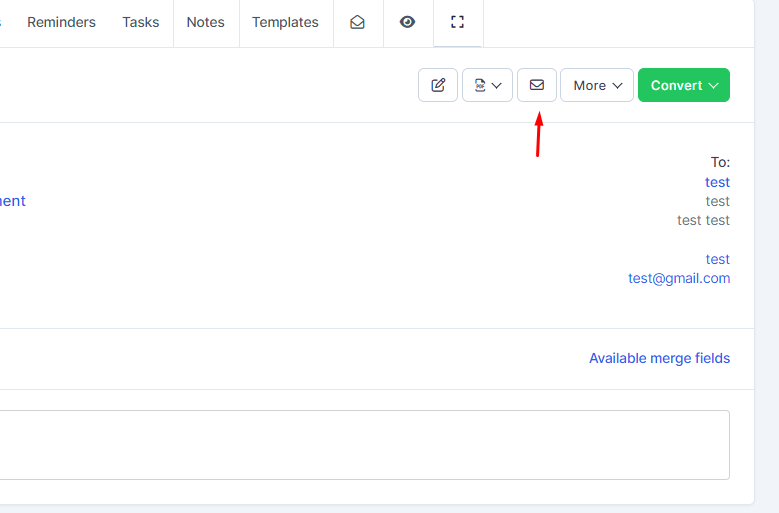
    We assume that you have already created the proposal. Click on the mail icon on the right side and a popup with the preview email template will be shown.

    You can include the proposal link inside the email template and let your customer view it without logging in. This is also useful for leads.

    After you send the proposal, a lead/customer can open it and take actions such as accepting, declining, or making comments. The creator of the proposal and the assigned sales agent will receive notifications in the CRM and via email when the customer comments or accepts/declines the proposal.

    How do you convert a proposal to an invoice or estimate in our CRM system?

    1. Navigate to the table and select the desired proposal.
    2. On the right side of the screen, a “Convert” button will appear. Click on this button.

    1. A menu will appear, prompting you to choose between “Estimate” or “Invoice.”
    2. Once you’ve made your selection, a popup will display with a preview of the information. Additionally, parsed items will be automatically inserted into the estimate or invoice.
    3. Review the information in the popup to ensure accuracy. If you’re satisfied with the result, click “Save.”
    4. After the conversion, the proposal will be automatically marked as accepted if it is not already marked as such.
    5. Note: If the proposal is associated with a lead that has not been converted to a client, you must first convert the lead to a client. Afterward, return to the proposal and proceed with the conversion to an estimate or invoice.

    How do you export customer invoices, estimates, and payments to a ZIP file in CRM?

    Go to the customer profile and click on the tab where you want to export data, e.g., invoices.

    Select a status or just leave it as ‘All’ and click ‘Submit.’ All invoices based on your selected options will be added to a .zip file.

    You can choose a start and end date, the date is based on the invoice/estimate/payment date.
    How to create a proposal template in the Saptivo CRM system?

    To simplify the proposal creation process in saptivo CRM, you can create predefined HTML templates that can be used every time a proposal is created.

    Create Proposal Template:

    To create a proposal template while viewing the contract, follow these steps:

    1. Click on the Templates tab.
    2. Click on ‘Add Template.’
    3. Enter the Template title for easy recognition.
    4. Use the editor to add predefined template content.
    5. Click ‘Save.'”

    Insert Template:

    Once you have created the template, you will be able to use and insert it into the editor content easily.

    While on the Templates tab, for the template you want to insert, click the ‘Insert’ button. The template content will be automatically injected into the proposal editor.

    You can send expiration reminders to the lead/customer assigned to this proposal. An email will be sent to the proposal email address added while you created/edited the proposal.

    How to create a proposal template in the Saptivo CRM system?

    To simplify the proposal creation process in saptivo CRM, you can create predefined HTML templates that can be used every time a proposal is created.

    Create Proposal Template:

    To create a proposal template while viewing the contract, follow these steps:

    1. Click on the Templates tab.
    2. Click on ‘Add Template.’
    3. Enter the Template title for easy recognition.
    4. Use the editor to add predefined template content.
    5. Click ‘Save.'”

    Insert Template:

    Once you have created the template, you will be able to use and insert it into the editor content easily.

    While on the Templates tab, for the template you want to insert, click the ‘Insert’ button. The template content will be automatically injected into the proposal editor.

    You can send expiration reminders to the lead/customer assigned to this proposal. An email will be sent to the proposal email address added while you created/edited the proposal.

    How do you send a proposal to a customer or lead?

    We assume that you have already created the proposal. Click on the mail icon on the right side and a popup with the preview email template will be shown.

    You can include the proposal link inside the email template and let your customer view it without logging in. This is also useful for leads.

    After you send the proposal, a lead/customer can open it and take actions such as accepting, declining, or making comments. The creator of the proposal and the assigned sales agent will receive notifications in the CRM and via email when the customer comments or accepts/declines the proposal.

    How do you convert a proposal to an invoice or estimate in our CRM system?

    How do you convert a proposal to an invoice or estimate in our CRM system?

    How do you export customer invoices, estimates, and payments to a ZIP file in CRM?

    Go to the customer profile and click on the tab where you want to export data, e.g., invoices.

    Select a status or just leave it as ‘All’ and click ‘Submit.’ All invoices based on your selected options will be added to a .zip file.

    You can choose a start and end date, the date is based on the invoice/estimate/payment date.